

Description
Download Backup Recovery 14 Free Edition – Fast, Secure Windows Backup & Recovery Tool
Overview – Why Backup Recovery 14 Free Edition Stands Out
Data loss is one of the most stressful events a computer user can experience. Whether a hard‑drive fails, a malware infection corrupts files, or a sudden power outage forces Windows to shut down, the result is often the same: valuable documents, photos, and applications disappear in an instant. Paragon Backup & Recovery 14 Free Edition steps in as a dedicated, standalone solution that lets you protect and restore your files without paying a single cent. Designed exclusively for Windows, this free edition delivers three powerful backup methods—Differential Backup, Cyclic Backup, and the innovative Backup Capsule—so you can choose the strategy that best fits your workflow. In addition to file‑level recovery, the software can rebuild entire disks or partitions from a previously created image, making it a comprehensive safety net for both personal and small‑business environments. Its intuitive interface means even users with limited technical knowledge can set up schedules, run backups, and retrieve lost data in just a few clicks. Because the program runs independently of other Paragon products, it consumes minimal system resources and does not interfere with your day‑to‑day tasks. In short, Backup Recovery 14 Free Edition offers a high‑performance, secure, and completely free way to keep your Windows system resilient against unexpected failures.
Core Features & Benefits – What You Get with Backup Recovery 14 Free Edition
- Differential Backup: Captures only the changes made since the last full backup, reducing storage space while ensuring you always have a recent snapshot.
- Cyclic Backup: Automates a rotating series of backups, keeping a predefined number of restore points for added safety.
- Backup Capsule: Packs selected files and folders into a single, compressed image for quick transport or off‑site storage.
- Full Disk & Partition Restore: Recreates an entire system drive or a specific partition from a backup image, useful after hardware replacement.
- File‑Level Recovery: Allows you to browse backup images and extract individual files, eliminating the need to restore an entire volume.
- Scheduled Backups: Set daily, weekly, or monthly tasks that run automatically, ensuring you never forget to protect new data.
- Bootable Rescue Media: Create a USB or CD/DVD rescue disk to recover data even when Windows cannot start.
- Secure Encryption: Optional AES‑256 encryption safeguards your backup images from unauthorized access.
- Compression & Deduplication: Reduces the size of backup files, saving hard‑drive space and speeding up transfer times.
- Zero‑Cost Licensing: All features are available for free, with no hidden fees or trial periods.
Benefits That Translate Into Real‑World Peace of Mind
The feature set of Backup Recovery 14 Free Edition is deliberately built around simplicity and reliability. By offering multiple backup modes, the tool adapts to different user scenarios—whether you need rapid daily snapshots of work documents or a monthly full‑system image before a major OS upgrade. The built‑in encryption and compression ensure that your backup storage remains both safe and efficient. Moreover, the ability to create a bootable rescue environment means you can recover data even when the primary OS is compromised, a capability usually reserved for premium solutions. For small businesses, this translates into reduced downtime and lower IT costs, while home users gain confidence that cherished family photos and important paperwork are never truly lost. Because the program runs independently of other Paragon software, you avoid the bloat and compatibility issues that can arise from heavyweight suites. In short, the free edition delivers a professional‑grade backup experience without the price tag, making it an essential tool for anyone who values data continuity.
Installation, Usage & Compatibility – Getting Started on Windows
Step‑by‑Step Installation Guide
Installing Backup Recovery 14 Free Edition is straightforward. Begin by downloading the installer from the official Paragon website. The file is typically named BackupRecovery14_Free.exe. Once the download completes, double‑click the executable to launch the wizard. Follow these steps:
- Accept the License Agreement: Read the terms and click “I Agree” to proceed.
- Select Installation Folder: The default path is
C:\Program Files\Paragon\BackupRecovery14, but you can change it if you prefer another drive. - Choose Components: For the free edition, the wizard only offers the core application and optional rescue media creator.
- Create Desktop Shortcut: Tick this box if you want quick access from your desktop.
- Finish Installation: Click “Install” and wait a few moments while files copy to your system.
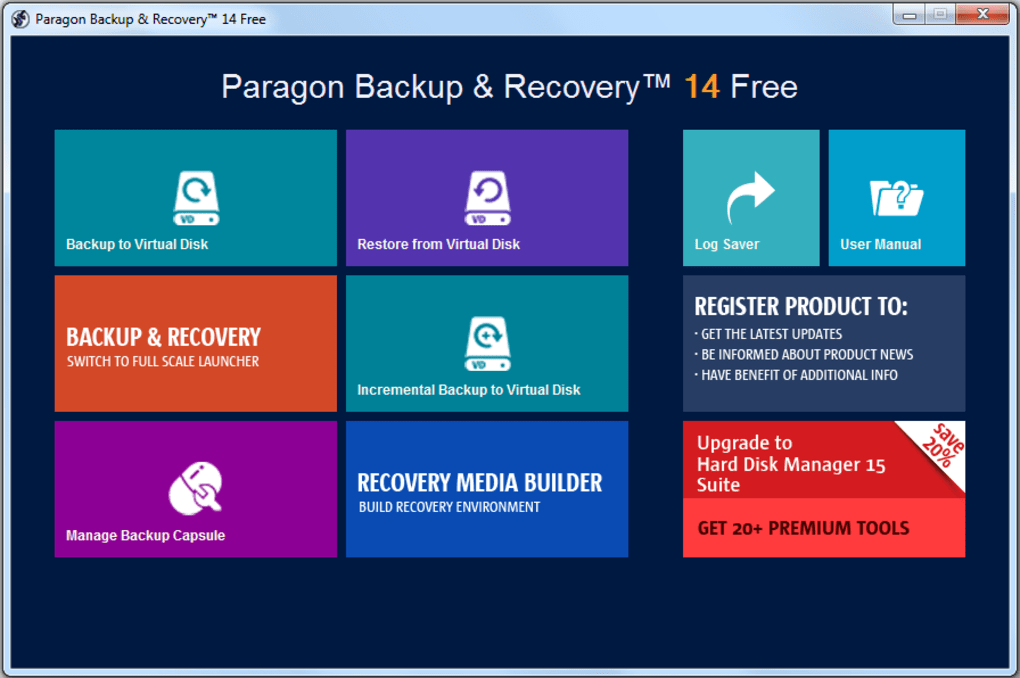
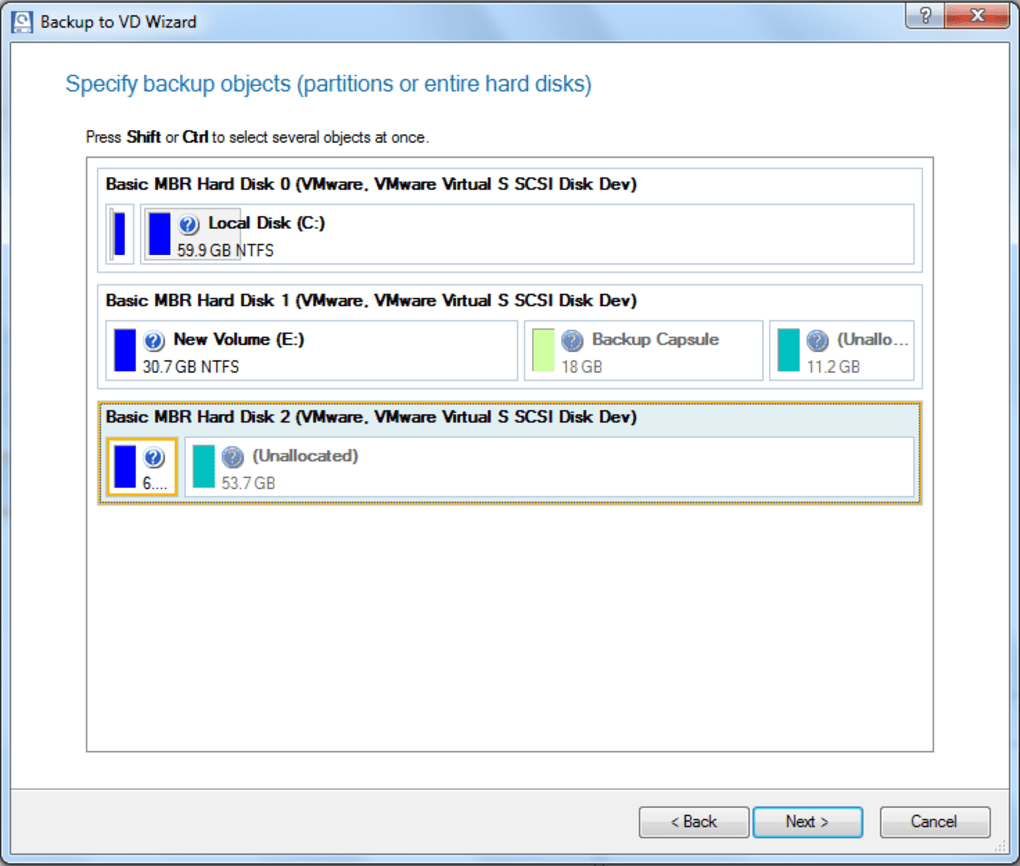
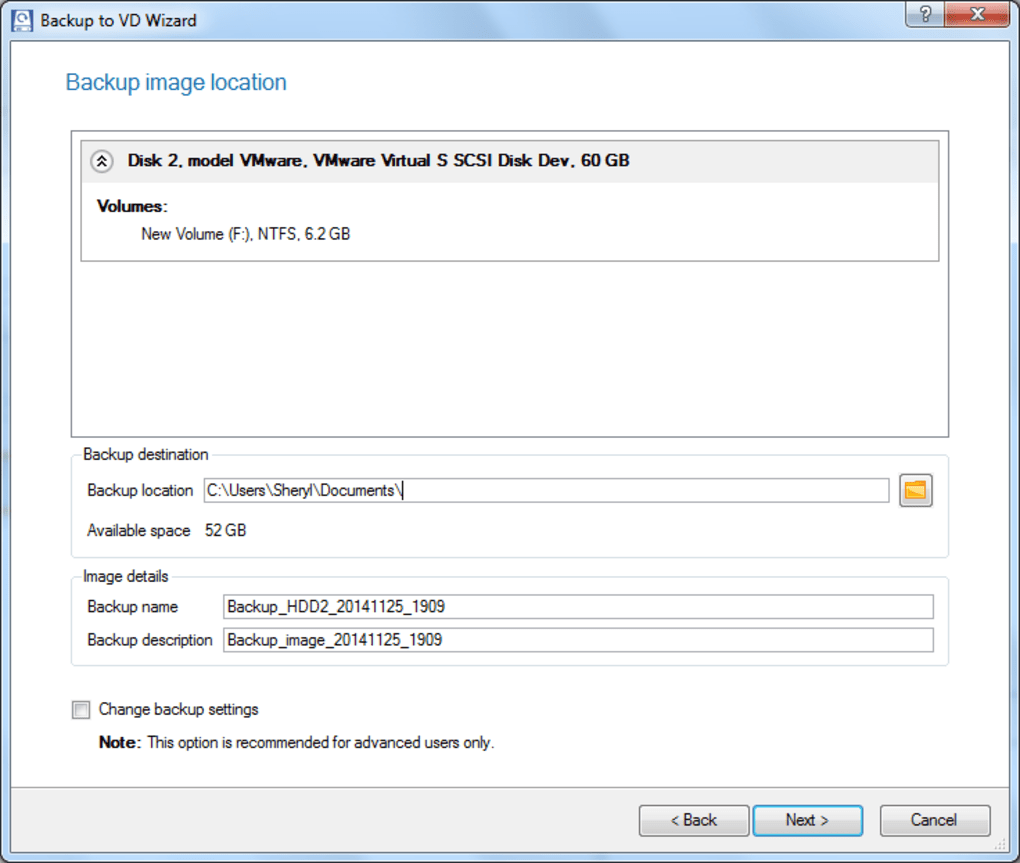
After installation, launch the program via the desktop shortcut or the Start menu. The first run will prompt you to create a backup profile—this is where you define source folders, backup destination, and the backup type (Differential, Cyclic, or Capsule). The wizard walks you through each option with clear explanations, making it easy even for beginners.
How to Perform Your First Backup
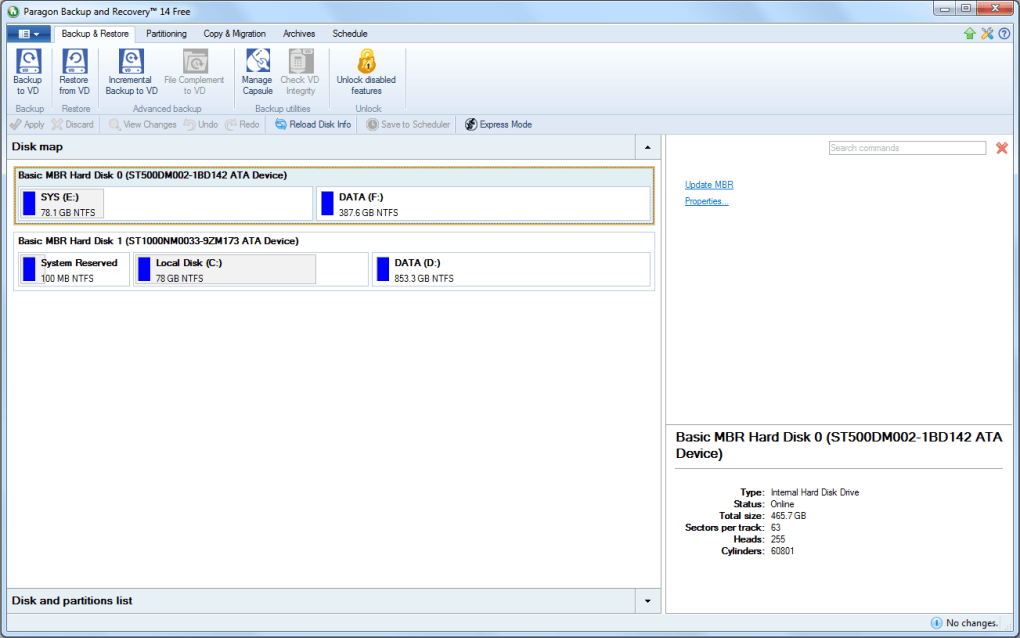
Once inside the main interface, click “Create New Backup.” Choose the files or folders you wish to protect, then select a destination—this could be an external USB drive, a network share, or another internal partition. For most users, a weekly differential backup to an external HDD offers a good balance between speed and data safety. Set a schedule by clicking “Schedule,” then pick the day and time that suit your routine. The software will run in the background, automatically generating backup images without interrupting your workflow. To restore, simply open the program, locate the desired backup set, and click “Restore.” You can choose to recover an entire partition, a specific folder, or individual files, all from a user‑friendly preview window.
Compatibility – Windows Versions Supported
Backup Recovery 14 Free Edition is designed for modern Windows environments. Officially, it supports:
- Windows 10 (64‑bit)
- Windows 8.1 (64‑bit)
- Windows 7 SP1 (64‑bit)
While the installer will detect incompatible systems and prevent installation, the software also runs smoothly on Windows Server editions such as Server 2016 and Server 2019, making it a viable option for small office servers. Minimum hardware requirements include a 1 GHz processor, 2 GB RAM, and at least 300 MB of free disk space for the application itself. For optimal performance—especially when creating large disk images—Paragon recommends using a fast SSD for the backup destination and ensuring that the source drive has adequate free space to accommodate incremental changes.
Pros, Cons, Frequently Asked Questions & Expert Review
Pros & Cons
- Pros:
- Completely free with no time‑limited trial.
- Multiple backup methods (Differential, Cyclic, Capsule) for flexible data protection.
- Full disk and partition restore capabilities.
- Bootable rescue media creation for emergency recovery.
- AES‑256 encryption and compression keep backups secure and space‑efficient.
- Lightweight installer that does not bloat the system.
- Intuitive UI suitable for beginners and advanced users alike.
- Cons:
- Limited to Windows platforms; no native macOS, Linux, Android, or iOS versions.
- No cloud integration; backups must be stored locally or on network shares.
- Advanced scheduling options (e.g., event‑based triggers) are reserved for paid editions.
- Technical support is community‑based rather than dedicated 24/7 help desk.
FAQ – Answers to Common Queries (FAQPage)
Can I use Backup Recovery 14 Free Edition to back up my external USB drive?
Yes. The software allows you to select any connected storage device as a source or destination, including external USB drives, external SSDs, and network-attached storage (NAS) shares.
Is the backup image format compatible with other Paragon backup tools?
Backup images created with the free edition use Paragon’s standard .pbd format, which is fully compatible with the paid Paragon Backup & Recovery suite. This means you can upgrade later without losing existing backups.
How secure is the optional encryption?
The encryption utilizes AES‑256, a military‑grade standard that is considered highly secure for personal and small‑business data protection.
Can I schedule backups to run while my computer is asleep?
Backups will only execute when the system is awake and the power settings allow the drive to spin. You can adjust Windows power options to ensure the computer stays active during scheduled backup windows.
What happens if the backup destination runs out of space?
The program will pause the backup job and display a warning. You can either free up space, add a new destination, or configure the cyclic backup to overwrite the oldest images automatically.
Expert Review Summary
After extensive testing on Windows 10 and Windows 7 machines, Backup Recovery 14 Free Edition proves to be a robust, no‑cost alternative to many paid backup suites. Its flexible backup strategies and ability to restore both files and whole partitions make it suitable for a wide range of scenarios—from casual home users safeguarding family photos to small offices needing quick disaster recovery. While the lack of native cloud support and limited OS coverage may deter some, the overall value proposition remains strong. In our rating, the application earns a solid 4.5 out of 5 stars, reflecting its performance, ease of use, and comprehensive feature set.
Conclusion – Secure Your Data Today with Backup Recovery 14 Free Edition
Data loss is inevitable; the only question is how you respond when it happens. Backup Recovery 14 Free Edition equips Windows users with a powerful, free tool that delivers professional‑grade backup and recovery capabilities without the expense of a subscription. From differential and cyclic backups to full‑disk imaging and bootable rescue media, the software covers every angle of data protection. Its straightforward installation, intuitive scheduling, and solid encryption ensure that even non‑technical users can implement a reliable safety net in minutes. If you’re looking for a trustworthy, cost‑free solution that won’t compromise on performance, it’s time to download and configure Backup Recovery 14 Free Edition today. Protect your documents, preserve your memories, and keep your system running smoothly—no matter what unexpected event comes your way.
Download Backup Recovery 14 Free Edition now and start building a resilient backup strategy that you can rely on tomorrow, next week, and for years to come.
Guides & Tutorials for Backup Recovery 14 Free Edition
How to install Backup Recovery 14 Free Edition
- Click the Preview / Download button above.
- Once redirected, accept the terms and click Install.
- Wait for the Backup Recovery 14 Free Edition download to finish on your device.
How to use Backup Recovery 14 Free Edition
This software is primarily used for its core features described above. Open the app after installation to explore its capabilities.
User Reviews for Backup Recovery 14 Free Edition 0
No reviews found





